Download Steps — Chrome / Firefox
When downloading an executable installer from the web, Windows may apply a security mark to the file that prevents it from running. This is a built-in Windows security measure known as the Mark of the Web (MOTW) and may require a few extra steps before you can run the installer.
Windows automatically marks files downloaded from the internet as potentially
unsafe. The steps below show how to unblock the installer so it can run normally.
This only needs to be done once per downloaded file.
Step-by-step
-
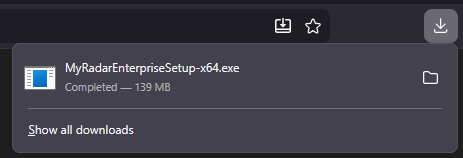
Click the x64 Install or ARM64 Install button on
the MyRadar Enterprise page. Once the download is complete, you will need to open
your Downloads folder to locate the installer file.
-
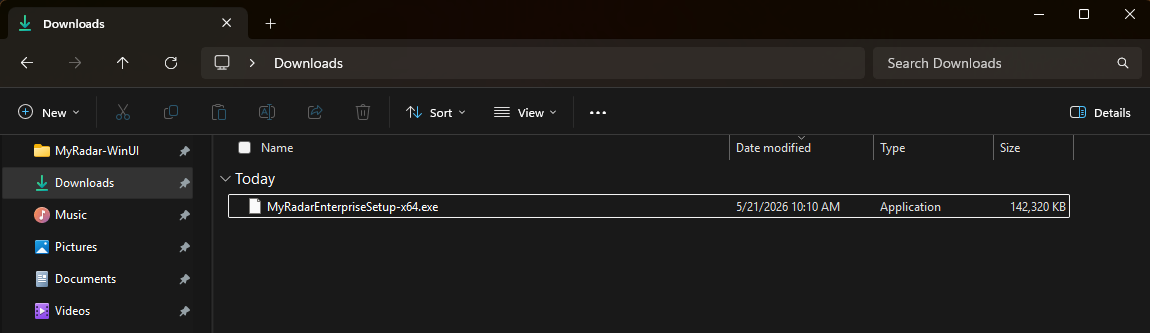
In the Downloads folder, locate the installer executable you just downloaded
(MyRadarEnterpriseSetup-x64.exe or the ARM64 variant).
-
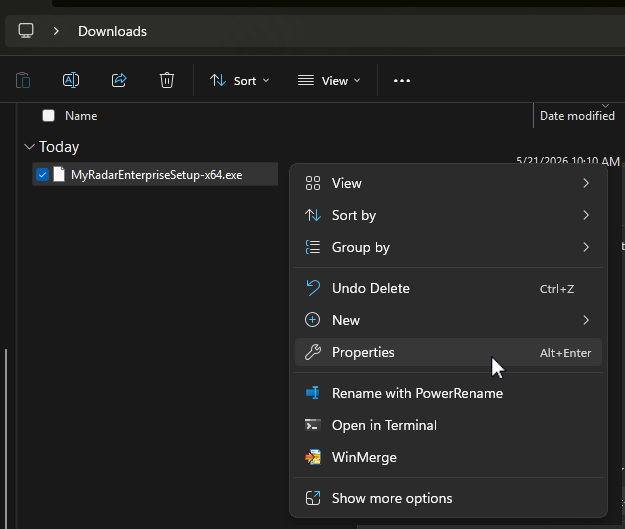
Right-click on the installer file and click Properties from the
context menu.
-
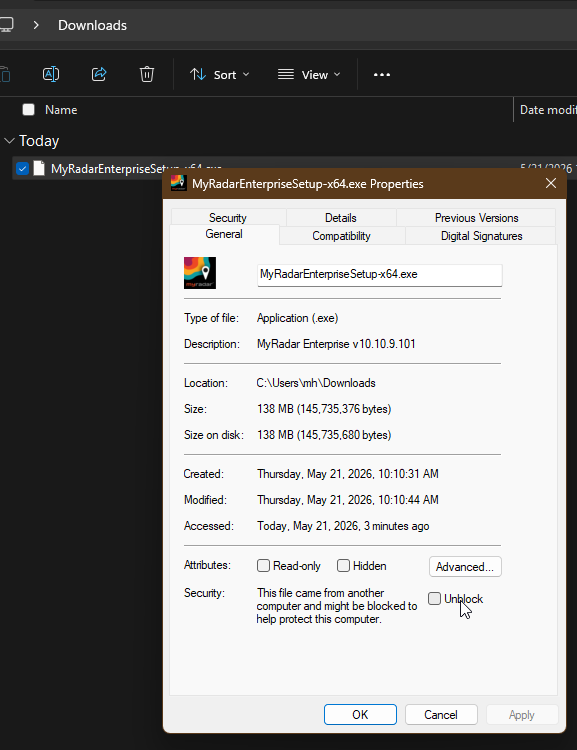
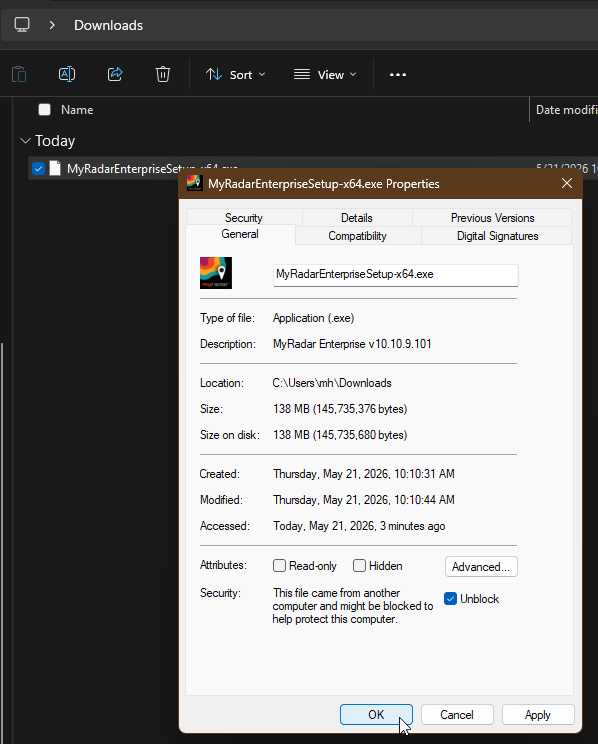
In the Properties dialog, on the General tab, look near the bottom
of the window for the Security section. You will see a message
stating the file came from another computer and might be blocked. Locate the
Unblock checkbox next to this message.
-
Click the Unblock checkbox to enable it, then click
OK to apply the change and close the dialog.
The installer is now unblocked. Double-click
MyRadarEnterpriseSetup-x64.exe (or the ARM64 variant) to begin
installation.