Download Steps — Microsoft Edge
Microsoft Defender SmartScreen and the Edge browser may flag the MyRadar Enterprise installer because it is not yet widely downloaded. This is normal for new enterprise software and does not indicate a security risk. Follow the steps below to save and run the installer.
These prompts appear because Microsoft Defender SmartScreen uses download reputation
to evaluate files. Newly published installers that have not yet accumulated enough
downloads will trigger these warnings until the file builds reputation over time.
Step-by-step
-
Click the x64 Install or ARM64 Install button on
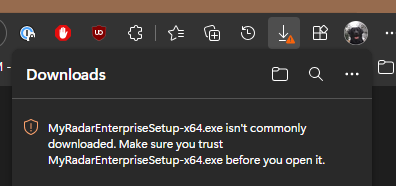
the MyRadar Enterprise page. Edge will begin the download and display a warning
in the Downloads panel indicating the file "isn't commonly downloaded."
-
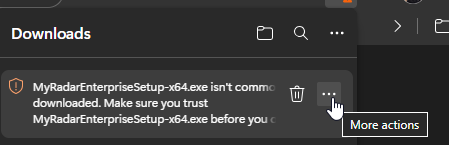
Hover over the download entry to reveal additional controls. You will see a
delete (trash) icon and an ellipsis (···) button appear to the
right of the warning message.
-
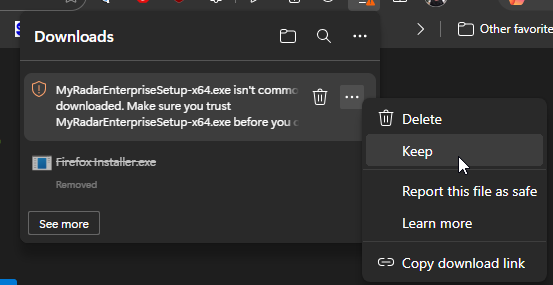
Click the ellipsis (···) button to open the context menu,
then click Keep.
-
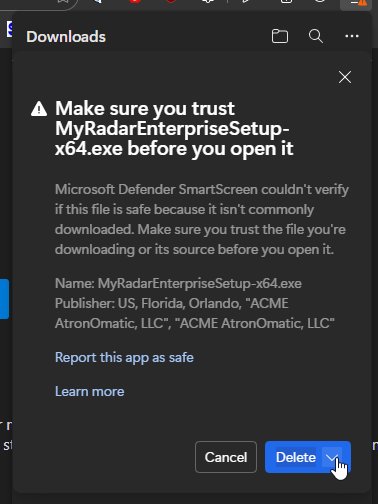
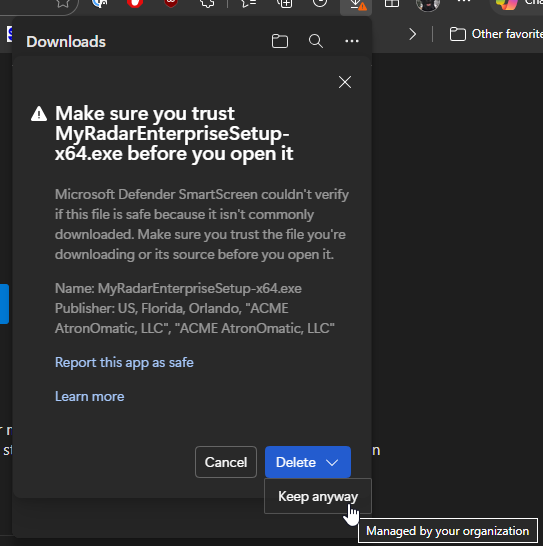
Microsoft Defender SmartScreen may then display a second warning dialog asking
you to verify you trust the file before opening it. Note that the dialog shows
the publisher as ACME AtronOmatic, LLC, confirming the installer
is properly signed.
Hover over the down arrow on the right side of the Delete button to expand it.
-
Click Keep anyway from the expanded menu. The installer will be
saved to your Downloads folder and is ready to run.
The installer may start automatically once you click Keep anyway.
If it does not, double-click MyRadarEnterpriseSetup-x64.exe
(or the ARM64 variant) in your Downloads folder to begin installation.